
NotebookLM Quiz Exporter
Export a quiz from NotebookLM to Google Forms, PDF, Anki, Word, Markdown, PowerPoint, Quizlet, CSV, JSON or QTI. The extension adds an Export button to the quiz canvas and downloads the questions, answer choices and correct answers together.
For Gemini Notebook, formerly NotebookLM · Review generated content before sharing
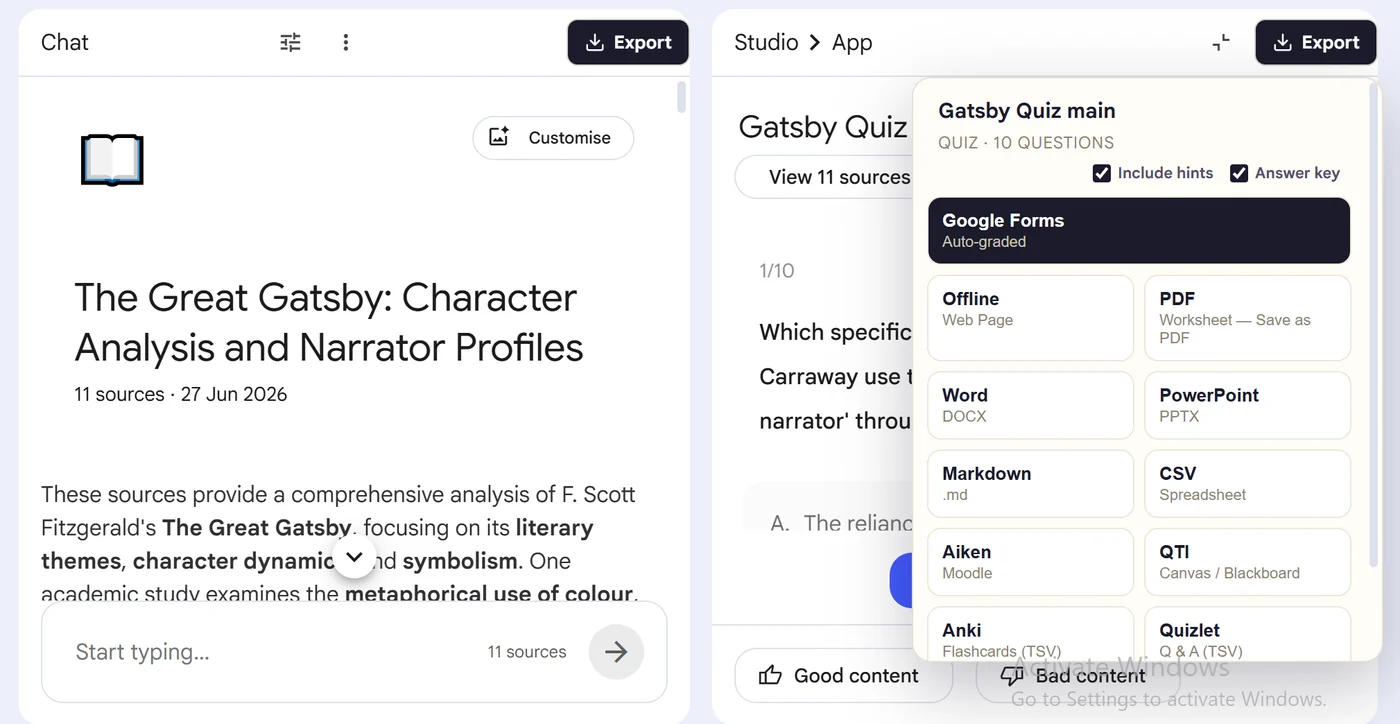
How to download a quiz from NotebookLM
NotebookLM has no built-in download button for quizzes. These five steps add one.
- Install the NotebookLM quiz exporter extension
Add NotebookLM Quiz Exporter for Gemini Notebook from the Chrome Web Store.
- Open your notebook
Go to Gemini Notebook (formerly NotebookLM) and open the Studio panel for the notebook you are working in.
- Open a completed quiz
Select a quiz and wait for the canvas to load. An Export ▾ button appears alongside the existing quiz controls.
- Choose an export format
Google Forms, PDF, Anki, Word, Markdown, PowerPoint, Quizlet, CSV, JSON or QTI.
- Download the quiz
Save the file or finish the import — then read through the questions and answers before you assign them.
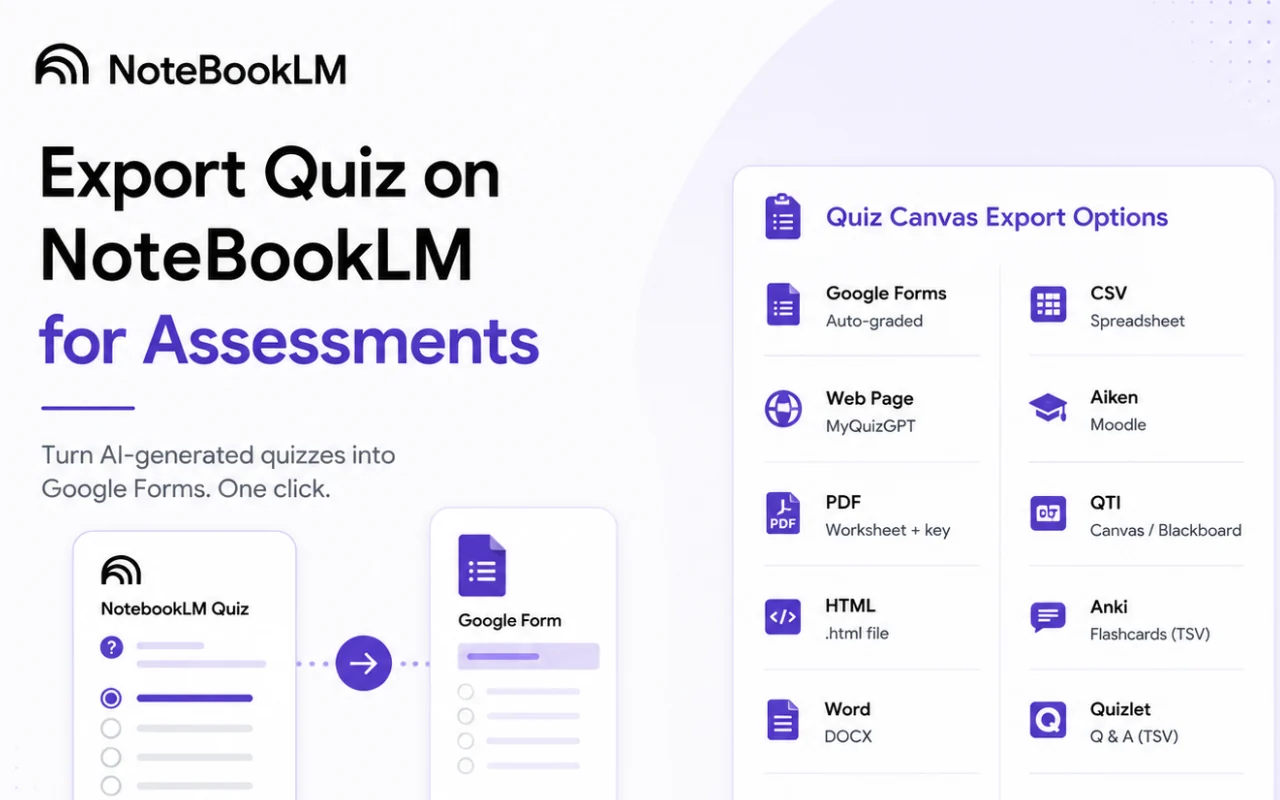
NotebookLM quiz to Google Forms
Google Forms has no quiz import of its own, so this is the conversion people most often do by hand — retyping every question, every option and every correct answer into a new form. The extension builds the form for you.
- ✓Arrives as a graded quiz, with the answer key already set
- ✓Multiple-choice options mapped to the right question
- ✓Lands in your own Google Drive, ready to edit or assign
- ✓Responses auto-score, so you are not marking by hand
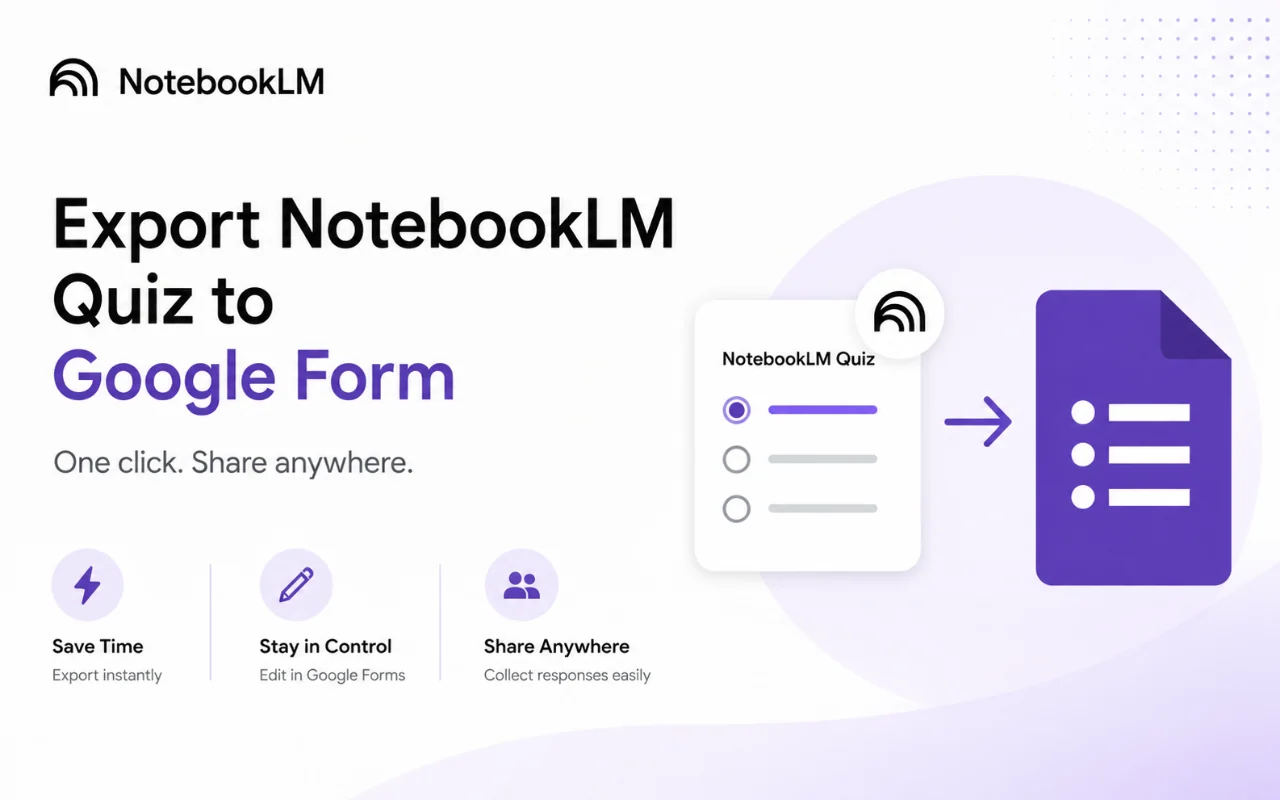
Export formats
Google Forms has its own section above. The other nine destinations, ordered by what happens next — printing, studying, editing or storing.
NotebookLM to PDF
Download the quiz as a clean, printable PDF worksheet with a separate answer key. The format to use for paper assessments, revision handouts and anything you need to archive as-is.
NotebookLM to Anki
Export the quiz as an Anki deck and drill it with spaced repetition across a term, instead of taking the quiz once and forgetting it.
NotebookLM to Word
A .docx you can reword, trim and brand before you hand it out or upload it.
NotebookLM to Markdown
Plain Markdown for Obsidian, Notion, a Git repo or your own notes.
NotebookLM to PowerPoint
One question per slide for live review sessions and revision games.
NotebookLM to Quizlet
Import as a Quizlet study set and use its learn, match and test modes.
NotebookLM to CSV
Spreadsheet rows you can sort, filter and merge into a question bank.
NotebookLM to JSON
Structured output for your own app, script or grading pipeline.
NotebookLM to QTI
A QTI package for Canvas, Moodle and Blackboard. Test with a short quiz first.
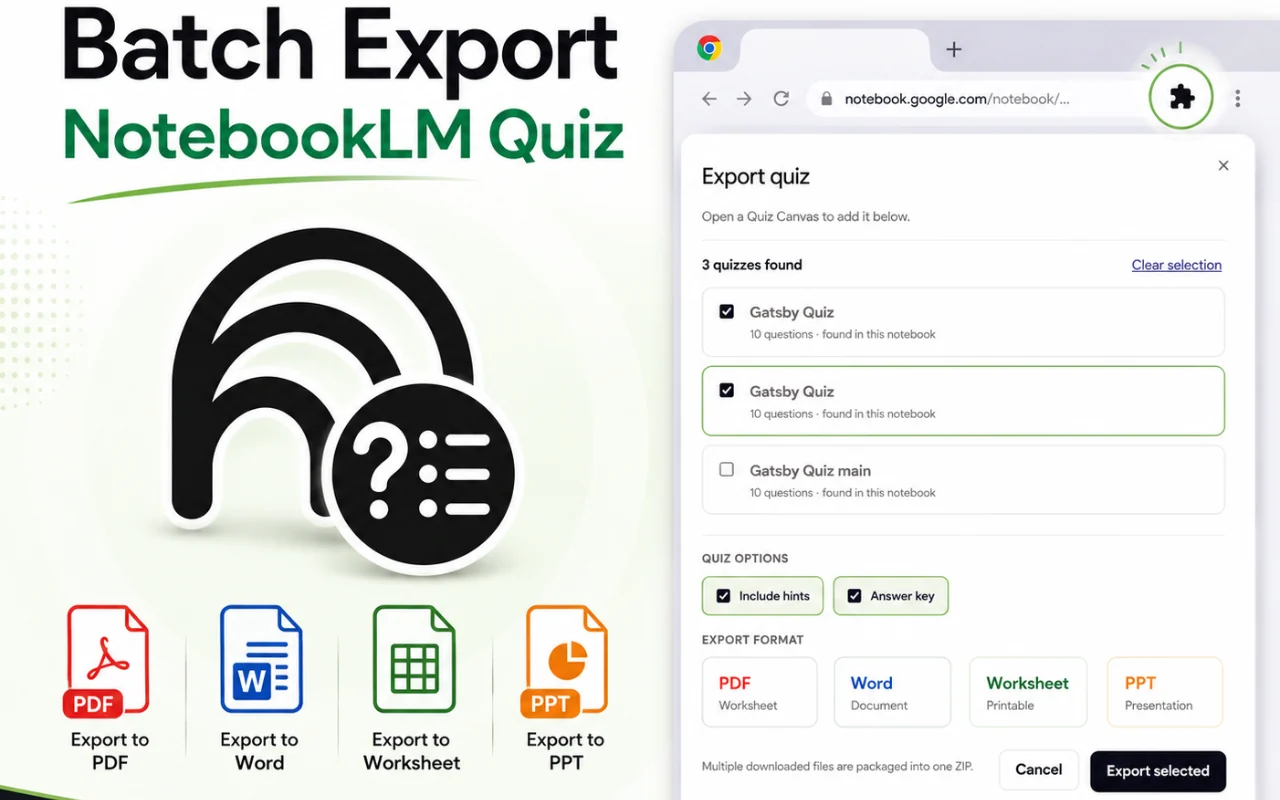
How to export multiple quizzes from Gemini Notebook
Most exporters only handle whichever artifact happens to be open. This one scans the notebook, finds every completed quiz in it and exports them together — the difference between a two-minute job and a long afternoon when you have generated a quiz per source.
- ✓Discovers completed quizzes across the whole notebook
- ✓Applies one export format to all of them
- ✓Keeps each quiz as its own file, named for its source
Who uses a Gemini Notebook exporter
Teachers
Turn a generated quiz into a printable PDF worksheet with an answer key, or a Google Form the class submits.
Course designers
Move questions into Canvas, Moodle or Blackboard as a reusable QTI question bank.
Students
Convert practice quizzes into Anki or Quizlet decks and actually drill them across a term.
Training teams
Keep assessments in Word or CSV so they can be edited, versioned and archived off-platform.
FAQ
How do I download a quiz from NotebookLM?
Install the extension, open a completed quiz in the Studio panel, then click the Export ▾ button it adds to the quiz canvas and pick a format. The download starts immediately — there is no copy-and-paste step.
How do I export a quiz from NotebookLM to Google Forms?
Choose Google Forms from the Export menu. The export builds a graded form with the answer key already set, so you can assign it and collect responses without rebuilding the questions by hand. Google Forms has no quiz import of its own, which is why this is the most requested destination.
How do I export NotebookLM to PDF?
Pick PDF from the Export menu to download the quiz as a printable worksheet with a separate answer key. This is different from printing the page — the export lays the questions out as an assessment rather than capturing the NotebookLM interface.
How do I export NotebookLM flashcards and quizzes to Anki?
Select Anki as the destination and import the resulting deck. Each question becomes a card with its correct answer, so you can drill the material with spaced repetition rather than taking the quiz once.
Can I download more than one quiz from NotebookLM at a time?
Yes. The batch feature finds every completed quiz in the notebook and exports them in a single pass rather than making you open each one.
How do I copy or share a quiz from NotebookLM?
Rather than copying the text by hand, export to the format that matches how you want to share it — Google Forms for a link people can answer, PDF for a file you can email or print, Word if the recipient needs to edit it.
Do the correct answers come across?
Yes. Questions, answer choices and the correct answer are kept together, so formats that support an answer key — Google Forms, QTI, the PDF worksheet, Anki — arrive already graded rather than as a bare list of questions.
Does it still work now that NotebookLM is Gemini Notebook?
Yes. Google renamed the product, but the quiz feature and the Studio panel work the same way. The extension targets the current interface.
Should I check the questions before assigning them?
Yes, and it is worth saying plainly: NotebookLM generates quizzes from your sources, so the export preserves whatever it produced — including any ambiguous wording or questionable answer choice. Exporting is not review. Read through the questions before you put them in front of learners, especially if the result will be graded.
Is the NotebookLM quiz exporter free?
The extension is free to install from the Chrome Web Store. See pricing for what is included on each plan.
Export your NotebookLM quiz in one click
Add the extension, open a quiz, choose a format. That is the whole workflow.
Add to Chrome — free